How to Fix Roblox Error Code 277 (Complete 2026 Guide)
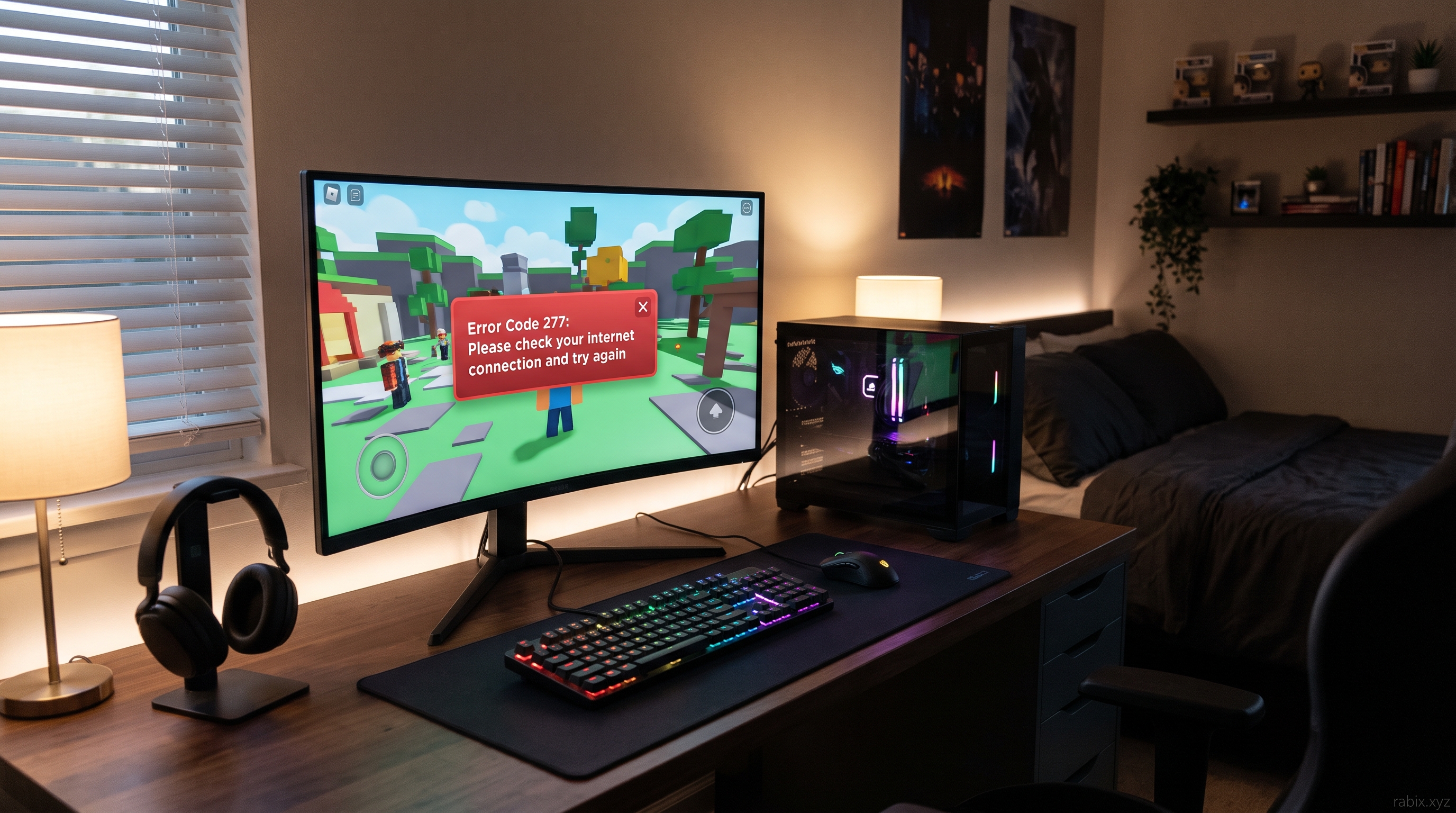
Few things ruin a great gaming session faster than getting kicked out of a server right in the middle of a match. If you have been greeted by a gray popup saying "Lost connection to the game server, please reconnect (Error Code: 277)", you are not alone. Error Code 277 is one of the most common connectivity issues on Roblox across PC, Mac, Android, iOS, and consoles.
The good news is that this error rarely means your account is banned or your device is broken. In almost every case, it comes down to a temporary drop between your device and the Roblox servers, corrupted cache files, or a network setting blocking the game. In this complete 2026 guide, we will walk through every proven method to fix Roblox Error Code 277 and get you back into your favorite experiences.
What Causes Roblox Error Code 277?
Before jumping into the fixes, it helps to understand why Error Code 277 happens. When you join a Roblox experience, your device maintains a constant stream of data packets with Roblox's game servers. If that connection drops for even a few seconds, Roblox automatically disconnects you and displays Error Code 277.
The most common triggers include:
- Unstable or weak internet connection: High packet loss, Wi-Fi interference, or sudden bandwidth drops.
- Roblox server outages: Scheduled maintenance or unexpected server crashes on Roblox's end.
- Corrupted Roblox cache or logs: Outdated temporary files interfering with the client.
- Router or DNS glitches: Faulty DNS routing or outdated router firmware.
- Firewall, antivirus, or VPN interference: Security software mistakenly blocking Roblox ports.
- Outdated Roblox client: Running an older version of the app after a platform update.
1. Check the Official Roblox Server Status First
Before changing any settings on your computer or router, make sure the problem is not on Roblox's side. When Roblox servers experience heavy traffic or outages, thousands of players receive Error Code 277 at the exact same time.
Visit the official Roblox Status Page to check if all systems are operational. Look specifically at User, Player, and Game Join statuses. If you see a yellow or red warning indicating a service disruption, no local fix will work—you will simply need to wait for Roblox engineers to restore the servers.
2. Restart Your Router and Switch to Ethernet
If the servers are online, your home network is the next prime suspect. Even if your browser loads web pages normally, online games require a steady, low-latency connection without packet loss.
- Unplug your Wi-Fi router and modem from the power outlet.
- Wait at least 60 seconds to allow the internal memory to clear completely.
- Plug the modem back in first, wait for the lights to stabilize, and then plug in the router.
- Reconnect your device and launch Roblox.
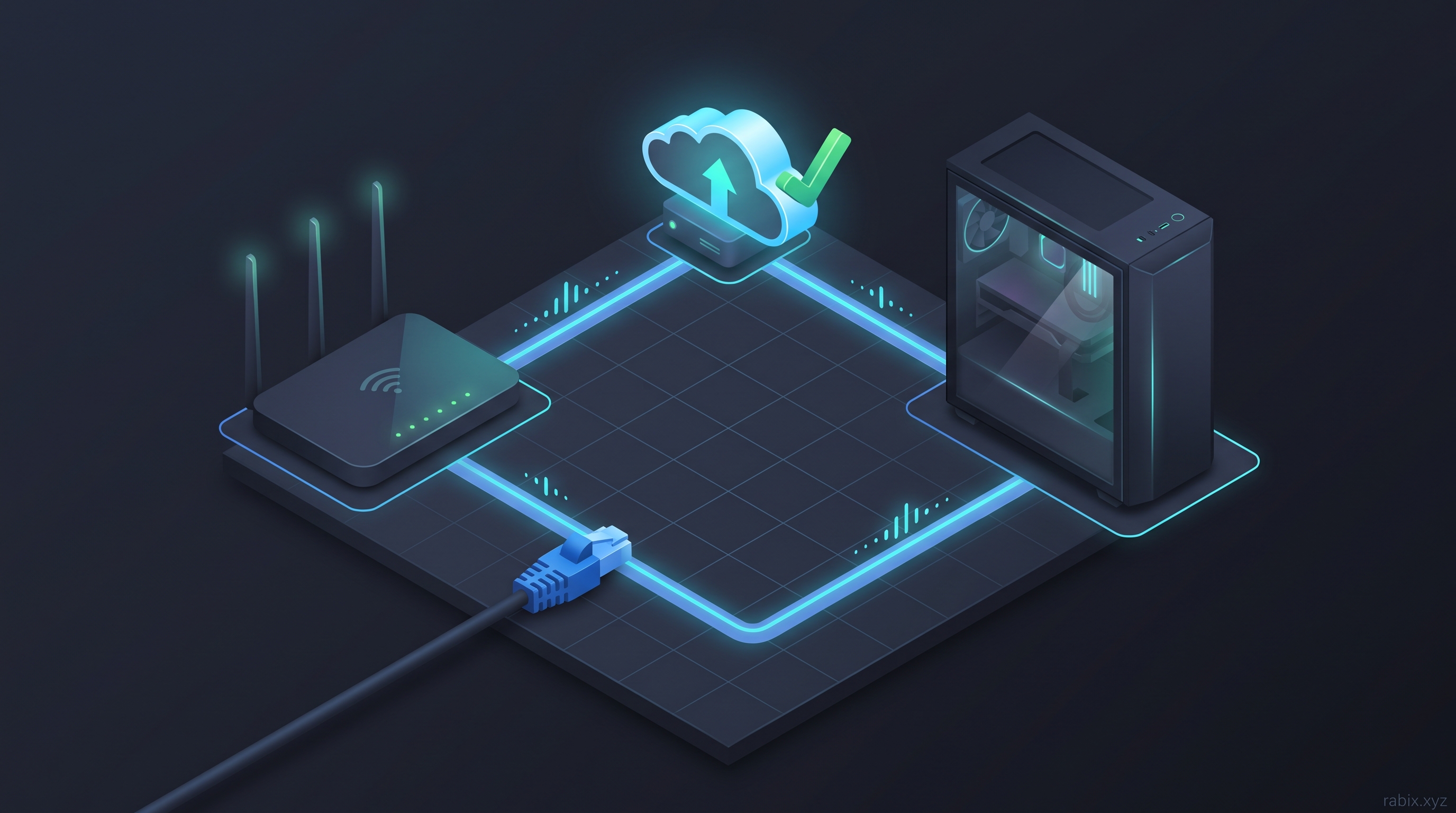
Pro Tip: If you are playing on a Windows PC, Mac, or console, switch from Wi-Fi to a wired Ethernet cable. Wired connections eliminate wireless signal drops and drastically reduce the chances of seeing Error Code 277 during intense sessions—especially when you are deep into some of the scariest games on Roblox where a sudden disconnect ruins the atmosphere.
3. Clear Roblox Cache and Temporary Files
Over time, Roblox stores temporary log files and cached assets on your device. If one of these files becomes corrupted after an update, it can trigger repeated Error Code 277 disconnects.
On Windows:
- Press Windows Key + R on your keyboard to open the Run dialog.
- Type
%localappdata%\Robloxand press Enter. - Open the logs folder and delete everything inside it.
- Go back one folder, open Downloads (if present), and clear its contents.
- Restart your PC and launch Roblox again.
On macOS:
- Open Finder and click Go > Go to Folder in the top menu bar.
- Type
~/Library/Caches/com.roblox.Robloxand press Enter. - Move the contents of the folder to the Trash and empty it.
- Relaunch Roblox.
On Android:
- Open Settings > Apps > Roblox.
- Tap Storage & cache.
- Tap Clear cache (do not tap Clear storage unless you want to log in again).
4. Flush DNS and Change Your DNS Server
Your Internet Service Provider's default DNS server can sometimes become sluggish or fail to route traffic properly to Roblox's game servers. Switching to a faster, public DNS like Google DNS or Cloudflare DNS often resolves Error Code 277 immediately.
Flush Your DNS on Windows:
- Click the Start menu, type cmd, right-click Command Prompt, and select Run as administrator.
- Type the following commands one by one, pressing Enter after each:
ipconfig /flushdnsipconfig /releaseipconfig /renewnetsh winsock reset
- Restart your computer.
Switch to Google or Cloudflare DNS:
- Open Control Panel > Network and Internet > Network and Sharing Center.
- Click Change adapter settings on the left.
- Right-click your active internet connection (Wi-Fi or Ethernet) and choose Properties.
- Select Internet Protocol Version 4 (TCP/IPv4) and click Properties.
- Select Use the following DNS server addresses and enter:
- Cloudflare DNS: Preferred
1.1.1.1| Alternate1.0.0.1 - Google DNS: Preferred
8.8.8.8| Alternate8.8.4.4
- Cloudflare DNS: Preferred
- Click OK to save and test Roblox.
5. Disable VPNs, Proxies, and Browser Extensions
While VPNs are great for privacy, they route your game traffic through distant servers, which increases ping and causes unstable connections. Roblox's anti-cheat and server routing systems frequently drop VPN connections with Error Code 277.
- Turn off any active VPN software (NordVPN, ExpressVPN, Cloudflare WARP, etc.) before launching Roblox.
- Check Windows Settings > Network & Internet > Proxy and ensure Use a proxy server is switched Off.
- If you launch Roblox from a web browser, temporarily disable ad blockers or Roblox-specific browser extensions to rule out conflicts.
6. Allow Roblox Through Windows Firewall and Antivirus
Sometimes Windows Defender Firewall or third-party antivirus programs mistakenly flag Roblox's network ports as suspicious and cut the connection mid-game.
- Open the Start menu and search for Allow an app through Windows Firewall.
- Click Change settings at the top right.
- Scroll down to find Roblox (or Roblox Player).
- Make sure both the Private and Public boxes are checked.
- Click OK to save changes.
If you use a third-party antivirus like Avast, McAfee, or Norton, add the Roblox installation folder to its Exclusions / Whitelist.
7. Reinstall the Roblox Client Completely
If none of the network fixes worked, your Roblox installation itself might be damaged. A clean reinstall ensures you have the latest 2026 build with zero corrupted files.
- Uninstall Roblox from your PC, Mac, or mobile device.
- Restart your device to clear any leftover background processes.
- Download the latest official installer directly from
roblox.com(or the Microsoft Store / App Store / Google Play Store). - Log back in and test a different experience to verify the connection is stable.
(Note: If you are experiencing Error Code 277 only in one specific game while other games work fine, the issue is likely a broken script or memory leak inside that particular experience. If you are interested in how developers optimize servers and prevent crashes, check out our guide on how to create a game on Roblox.)
Frequently Asked Questions (FAQ)
Does Roblox Error Code 277 mean I am banned? No. Error Code 277 is strictly a server connection error. It does not mean your account has been moderated, warned, or banned.
Why do I keep getting Error Code 277 on mobile data? Mobile networks frequently switch cell towers or fluctuate in signal strength, which causes brief packet loss. Switching to a stable Wi-Fi network or toggling Airplane Mode on and off usually fixes the issue on iOS and Android.
Can a specific Roblox game cause Error Code 277? Yes. If a game's server crashes due to heavy scripts, exploits, or too many players, everyone in that server will be disconnected with Error Code 277. Try joining a different server or another experience to confirm.